
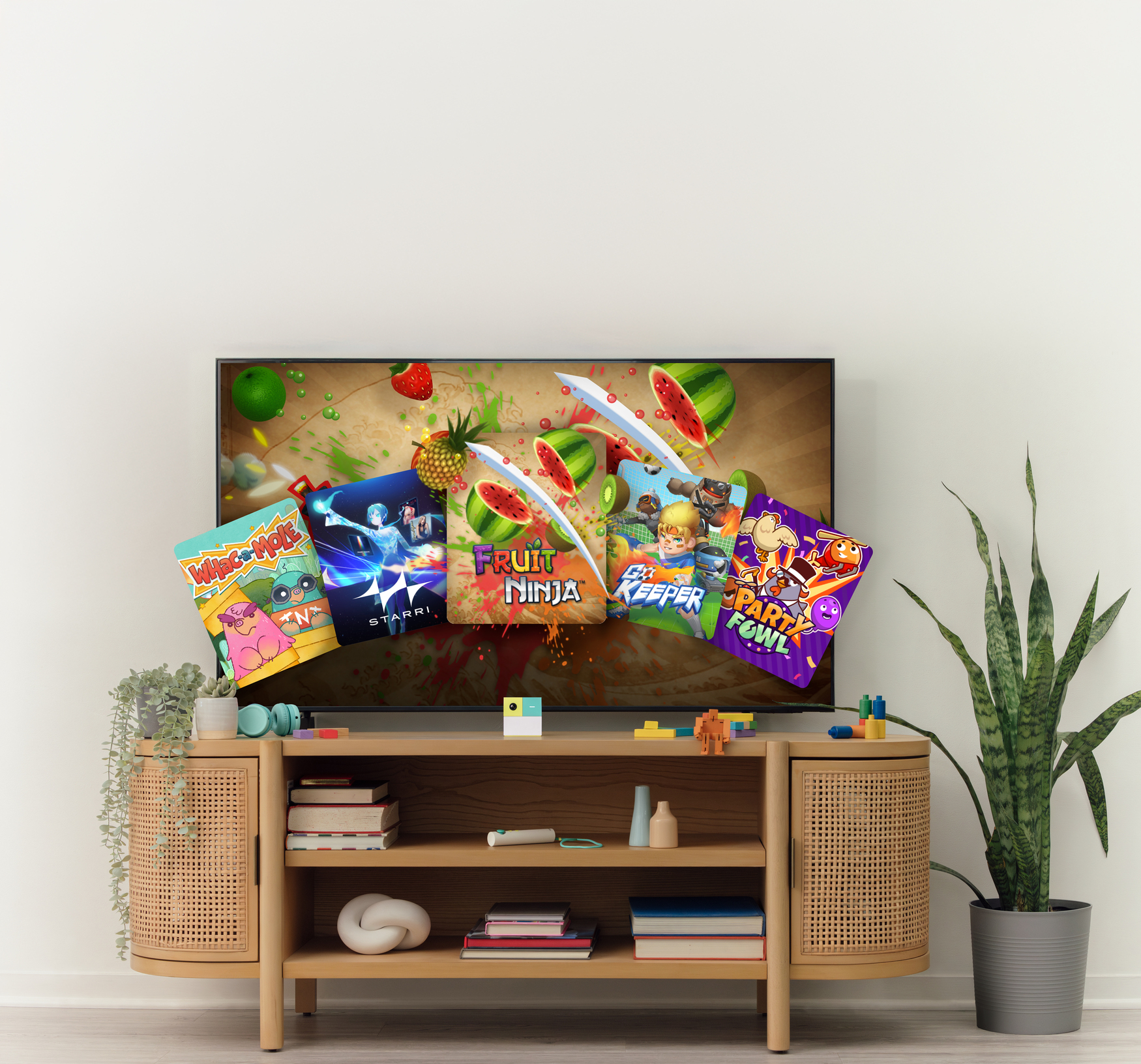
Ready to bring home more active play? This guide will help you set up Nex Playground, and give you all the extra details you need to have a successful first play session.
We’re walking through device activation, how long it takes to download games on Nex Playground, and tips for setting up your play space so it’s ready for motion-powered fun.
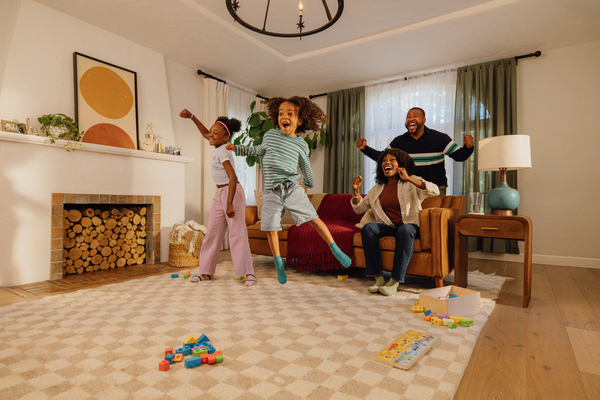
Setting up Playground is quick and easy. Just follow the instructions below, and you’ll be playing the starter pack games in no time.
Purchasing Play Pass so you can unlock the entire game catalog? To keep it stress-free, we recommend starting set up 2-3 hours before the intended playtime so the full game library has plenty of time to download.
The included HDMI and power cords are all you need to get Playground up and running. Just make sure to use the power cord provided (or an equivalent power supply) to avoid issues during gameplay.
A) Select Language: Choose your preferred language for all future Playground sessions.
B) Connect to Wi-Fi: Seamless play begins with a stable internet connection. Select your network, enter your password, and confirm a strong signal to download games and future updates.
Helpful tip: Once setup is complete, you don’t need WiFi to play. But you will want to connect periodically for new game or device updates.
It's time to activate Playground. Scan the QR code on the screen with your phone's default camera app to begin the process.
A) Enter Your Email Address
Your email address is your key to Playground. You’ll use it to activate your system and purchase Play Pass. Only one email account can be linked to each Playground console.
B) Enter Your Temporary Login Key
Once an email address is chosen, we'll send you a temporary login code to verify that email address.
C) Optional: Purchase Play Pass
Congratulations, your Playground is now activated and ready to play! Five free games are included with your console. But if you want to unlock the full game catalog, you’ll need Play Pass.
Play Pass gives you access to everything Playground has to offer, including all new games, updates, and special events. You can buy a 3-month or 12-month renewing Play Pass directly from your phone during setup.
Did you already purchase Play Pass and have a code to redeem? You’ll be prompted to enter it after activating your account. Good news: your code-activated Play Pass term begins only after entering the code on your device.
Want to try the free games first? You can always add Play Pass later. Purchase directly on your system at any time, or buy a code here and activate it when you’re ready.
Helpful hint: If you buy your first-ever Play Pass directly from Nex, you have 7 days to experience it risk-free. Not what you expected? Contact customer service within 7 days of activation to request a refund.
Play Pass is also available everywhere Playground is sold, including Amazon, Walmart, Target, Best Buy, and Sam’s Club. But please note these are non-refundable.
Once your Playground is activated and all games are downloaded, use the tips below to create the ideal play environment.
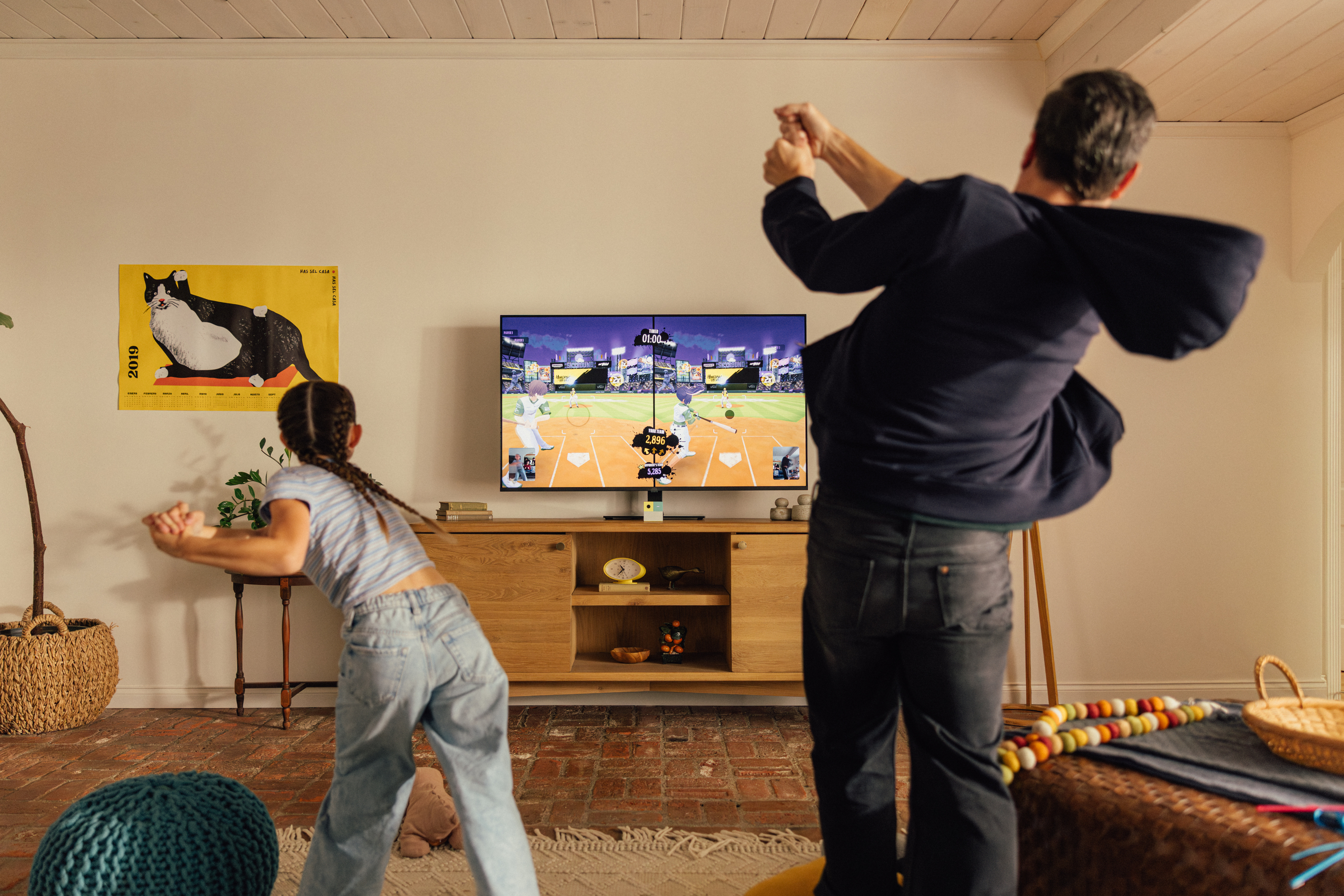
Place Playground directly under your TV. For best results, it should be centered and positioned at the very front edge of the surface so its camera has the widest and clearest field of view.
Playground games involve big movements—kicking, punching, jumping, and quick shifts from left to right. Clear a rectangular area free of furniture for safe play, with a minimum recommended space of 6’ × 6’.
Playground works best in a well-lit room. However, there are two lighting situations that you should avoid to prevent camera tracking issues: strong backlighting (for example, having an uncovered window directly behind the play space) and bright lights positioned directly above the console.
Now that your room is Playground-ready, follow these tips to improve camera tracking or resolve some common gameplay issues.
Does a game feel laggy? We know latency can quickly derail a play session. If your TV offers a dedicated Game Mode, make sure it’s enabled so movements feel more responsive.
Read this help article for more info on how to switch Game Mode on for your specific TV.
There’s no official Playground uniform, but some clothing choices may impact the camera’s tracking.
A) Busy patterns can distract the camera from focusing on the player.
B) Colors that blend into the background (like clothing shades that match your walls) may make it harder for the camera to distinguish player movement.
For accurate tracking, only active players should be visible to the Playground camera during gameplay. Make sure others stay outside the play area, and be mindful of mirrors—they can unintentionally introduce “extra players” into the frame.
Not seeing the newest games on Playground? Head to Settings → System → Updates to confirm you’re running the latest version. If an update is needed, simply connect to Wi-Fi, and it should begin downloading automatically.
You’ve got all the setup basics down, but here are a few bonus tips from our community to help you have a great first experience.
Many of the games require your child to stay within a viewable space for tracking. But this can be tricky for younger kids to understand. Help your kiddos find the right spot by putting painter’s tape (or another visual cue) on the floor so they know where to stand.
If all else fails, turn on Mirrorama to avoid this issue altogether. ;)
If a game is not working as intended, try using "Fix Stuck Games" to reset it.
Don't worry—this doesn't erase all your progress. It simply closes the experience (much like how swiping up on your phone closes an app). There are 2 ways to do this:
1. Head to device 'Settings' and scroll down to select "Fix Stuck Games".
2. Press down while in the game's menu screen to access the feature.
Then re-open your game and give it another go.
Kids and missing remotes go hand in hand. If yours has disappeared, try using your TV’s remote. Many TV or Universal remotes can control Playground. Get more info on how to set this up here, then give it a try.
If this doesn’t work, or you just miss your matching remote, you can always order a new one in our online store.
Not a fan of certain games? We know every family is different, and what one family considers family-friendly may not align with your definition of the term.
If there are games you’d rather your child avoid, head to “Settings” to hide them. You can also hide individual songs in Starri by heading to the game’s settings. Learn more about hiding games here.
If you run into a snag or encounter something not covered here, help is always close by. Visit Nex Playground Support to explore our Help Center. You’ll find step-by-step articles, videos, links to our community, and FAQs to keep your setup on track.
Need more help? Reach out to our customer support team.
We hope you enjoy Nex Playground!


